
Crea tu campaña
Una guía paso a paso para lanzar tu recaudación con herramientas de IA, importación inteligente y un asistente de chat con IA.
Cómo funciona
FundlyHub facilita la creación de una recaudación profesional. Nuestro constructor WYSIWYG te permite ver exactamente cómo se verá tu campaña mientras la creas, con herramientas de IA para ayudarte a escribir tu historia y encontrar la portada perfecta. Sigue esta guía visual para lanzar tu campaña en minutos.
Regístrate e inicia sesión
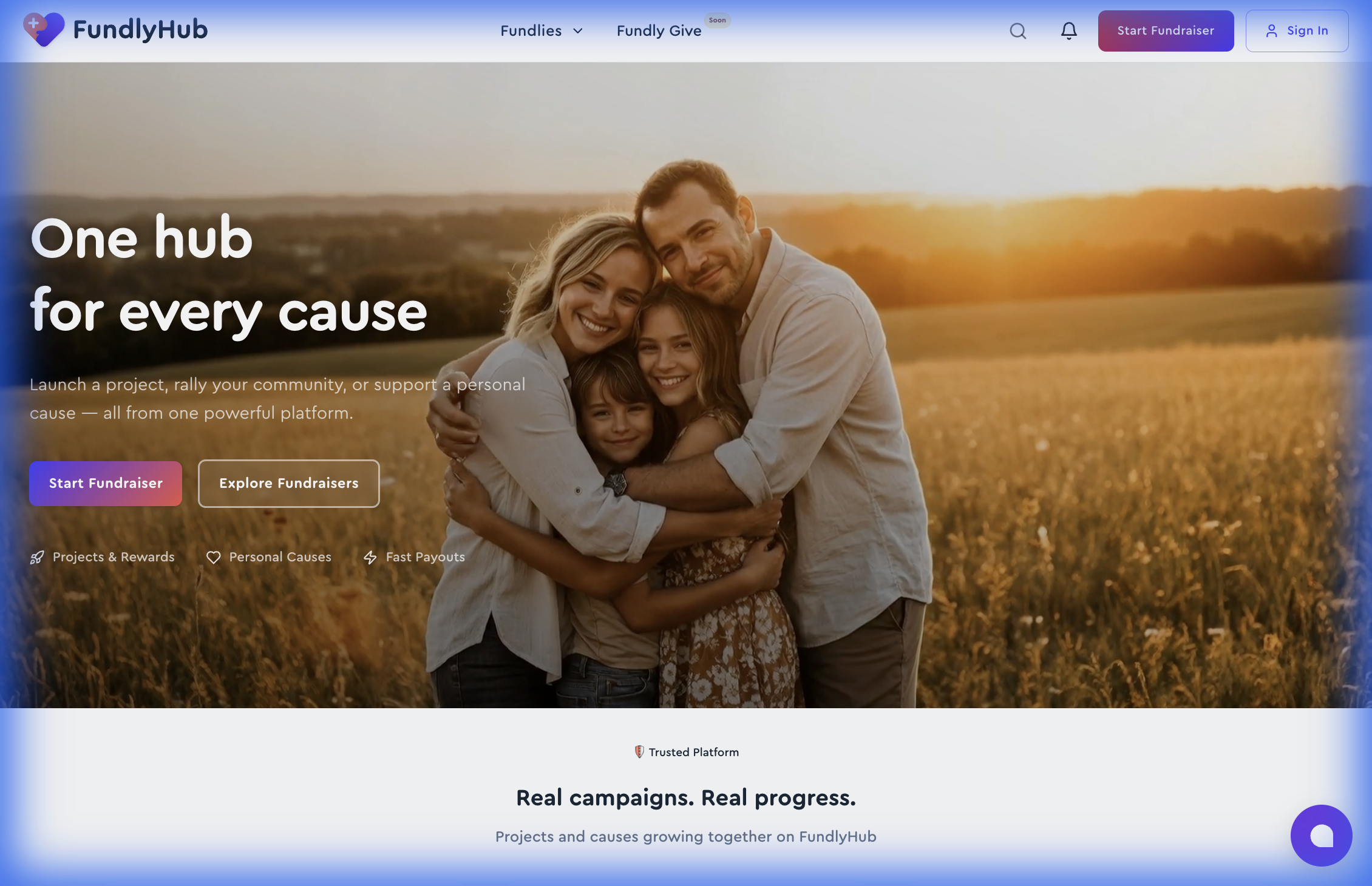
Antes de crear una campaña, necesitarás una cuenta de FundlyHub. Ve a fundlyhub.org y haz clic en el botón «Start Fundraiser» en la navegación superior, o en «Sign In» si ya tienes cuenta.
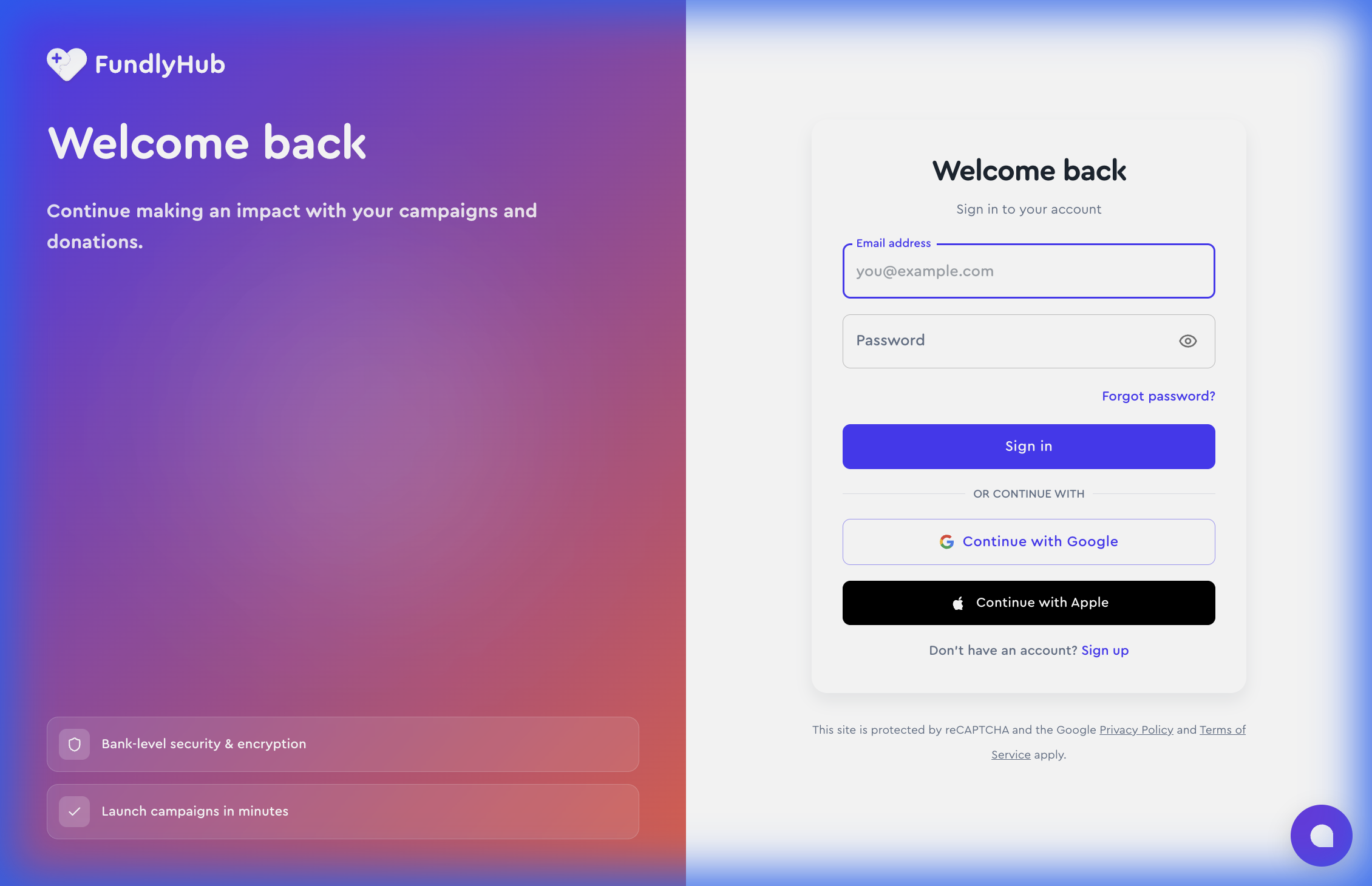
Te llevaremos a nuestra página de inicio de sesión. Puedes crear una cuenta con tu correo o usar Continue with Google o Continue with Apple para registrarte con un clic.
Empieza a crear
Una vez que hayas iniciado sesión, ve a /create para abrir el constructor de campañas. La página está dividida en dos secciones:
•
•
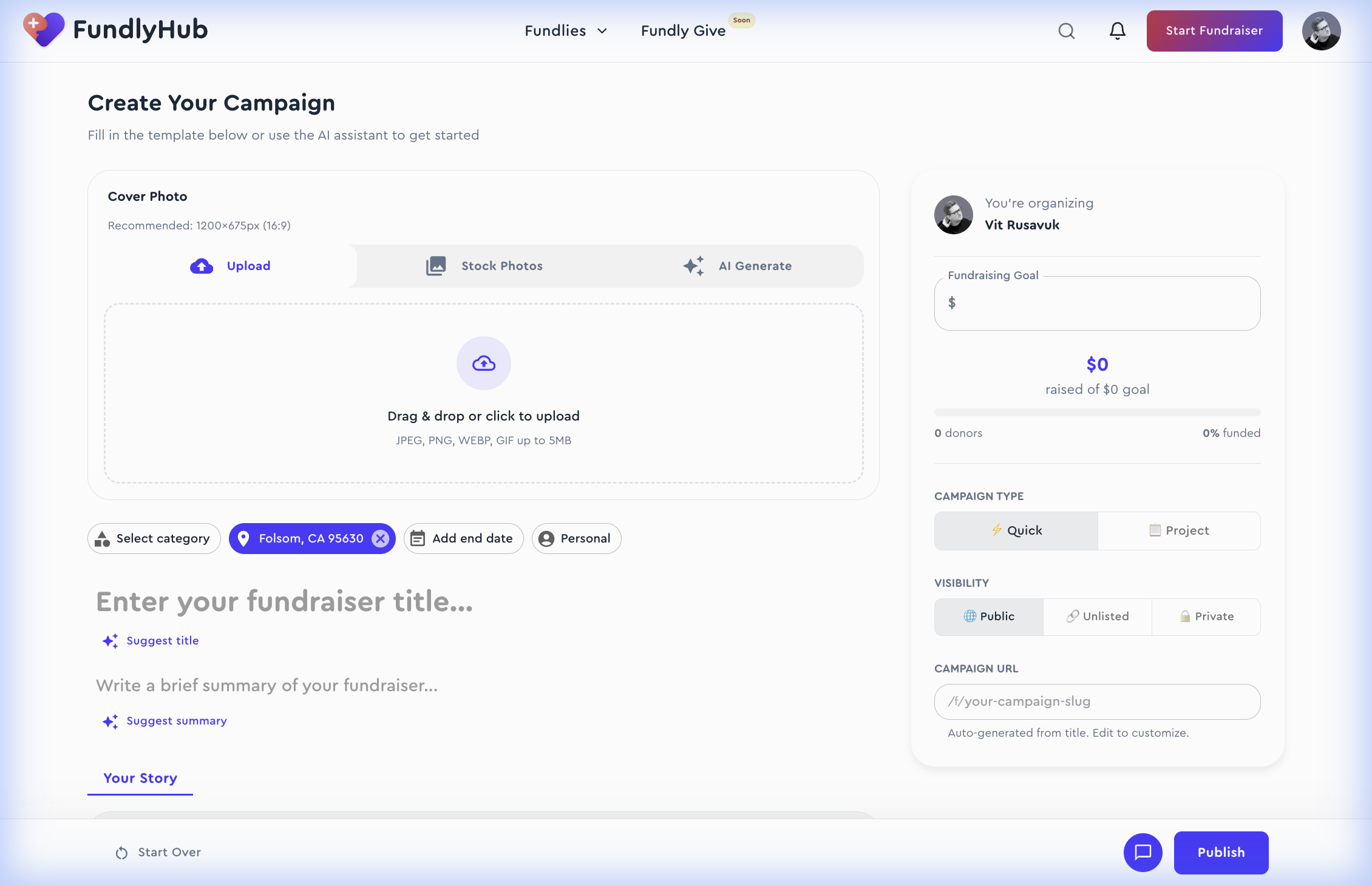
Todo lo que escribes se muestra en tiempo real, así puedes ver exactamente cómo se verá tu campaña publicada. Tu borrador se guarda automáticamente cada 30 segundos.
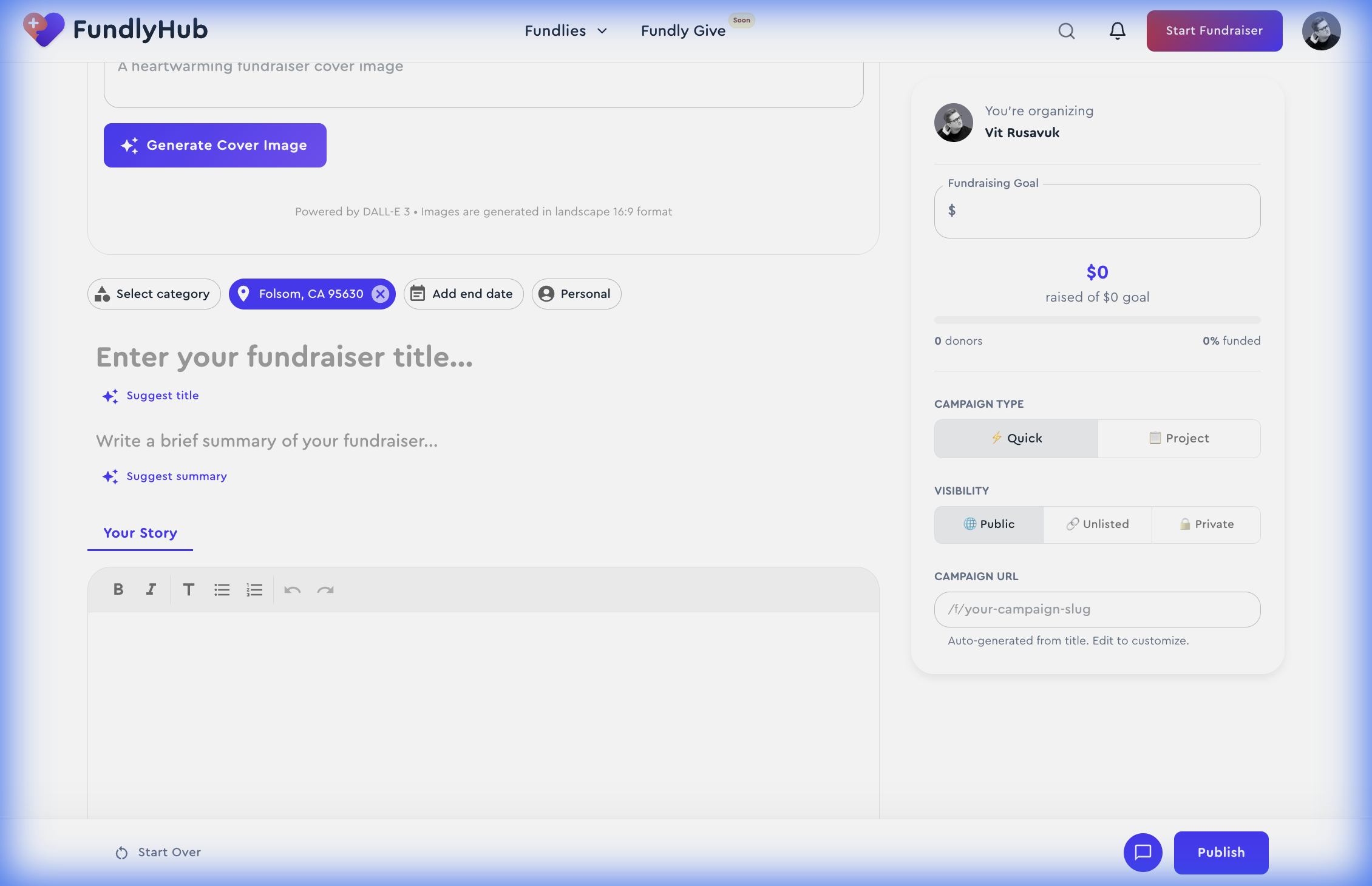
Añade una portada
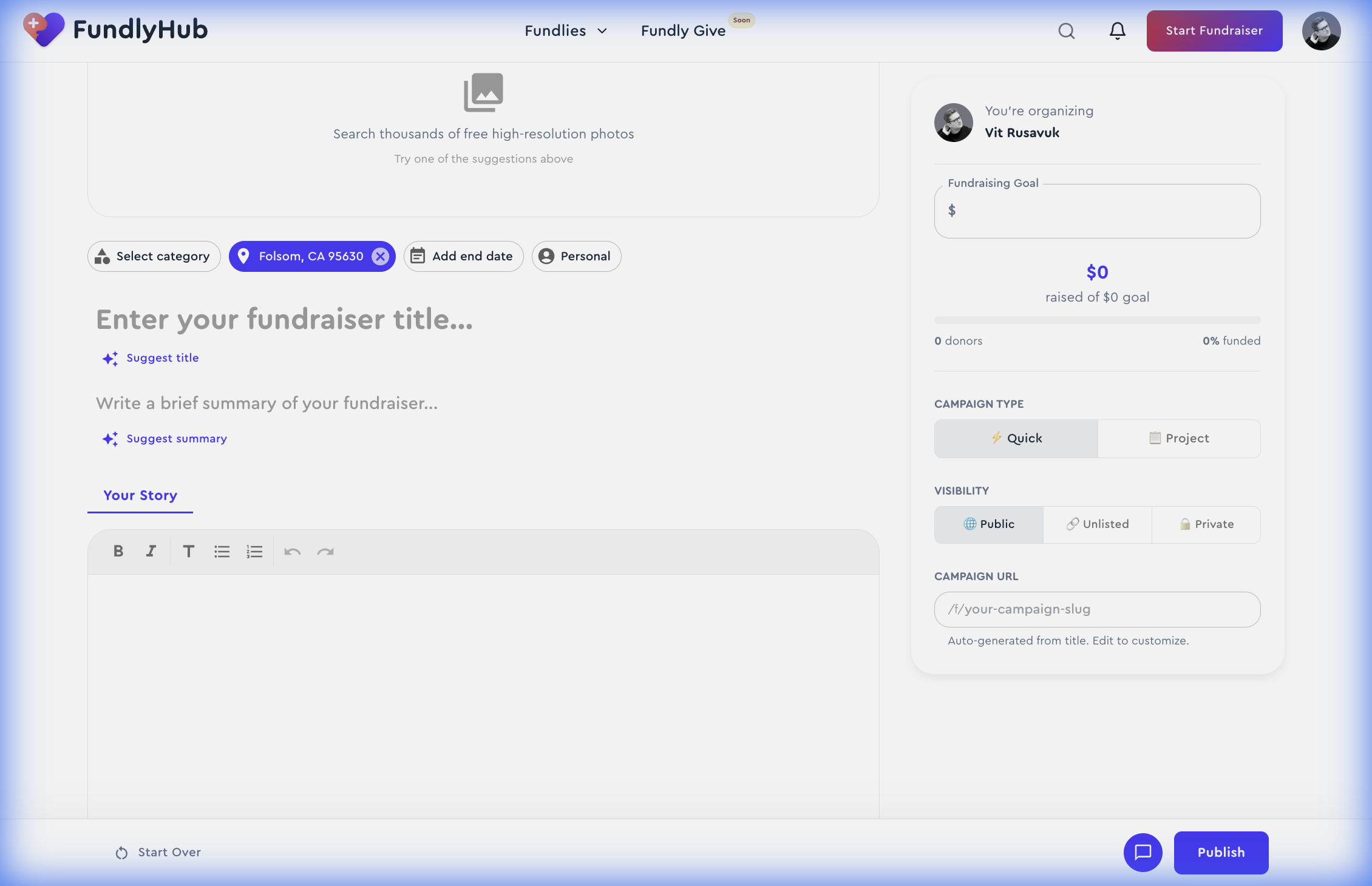
Elige una imagen de portada atractiva con una de tres opciones:
1.
2.
3.
Escribe tu historia
Cuenta a los posibles donantes por qué importa tu causa. Rellena estos campos:
•
•
•
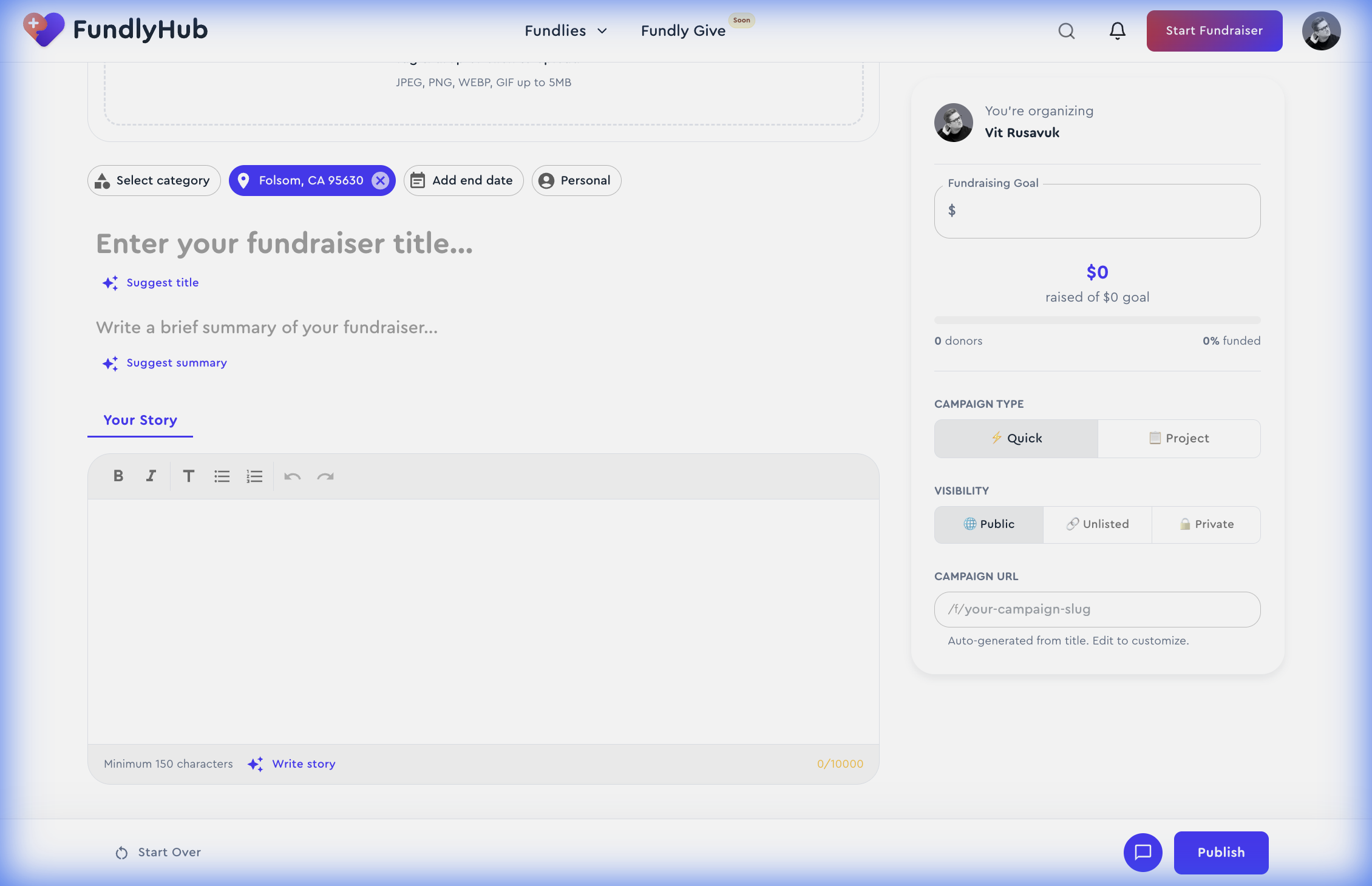
Cada campo tiene un botón ✨ AI Suggest que genera contenido profesional basado en lo que ya has escrito. Haz clic en el icono de la chispa junto a cualquier campo para obtener una sugerencia con IA — puedes aceptarla o modificarla. El editor de historia también tiene un botón ✨ Write story que genera una narrativa completa.
Define tu meta y los detalles
Configura los detalles clave de tu recaudación en la barra lateral derecha:
La categoría se detecta automáticamente con IA según el título y el contenido de la historia — siempre puedes anularla manualmente. Elige entre tipo Quick (causa personal) o Project (campaña estructurada) y configura la visibilidad como Public, Unlisted o Private.
Usa el chatbot de IA (Fundraiser Creator)
El chatbot Fundraiser Creator es tu asistente de IA para crear campañas. Busca el icono de la burbuja de chat en la barra de acciones inferior.
Lo que puedes hacer:
•
•
•
Cuando el bot rellena campos, verás una animación de pulso en las secciones actualizadas y una notificación. Todo el contenido autocompletado es totalmente editable.
Importa desde GoFundMe (o cualquier enlace)
¿Ya tienes una campaña en otra plataforma? Puedes importarla en segundos:
1.
2.
3.
Es perfecto para migrar una campaña existente a FundlyHub sin tener que volver a escribir todo.
Revisa y publica
Cuando estés satisfecho con tu campaña, pulsa el botón Publish en la barra de acciones inferior. Antes de publicar:
•
•
•
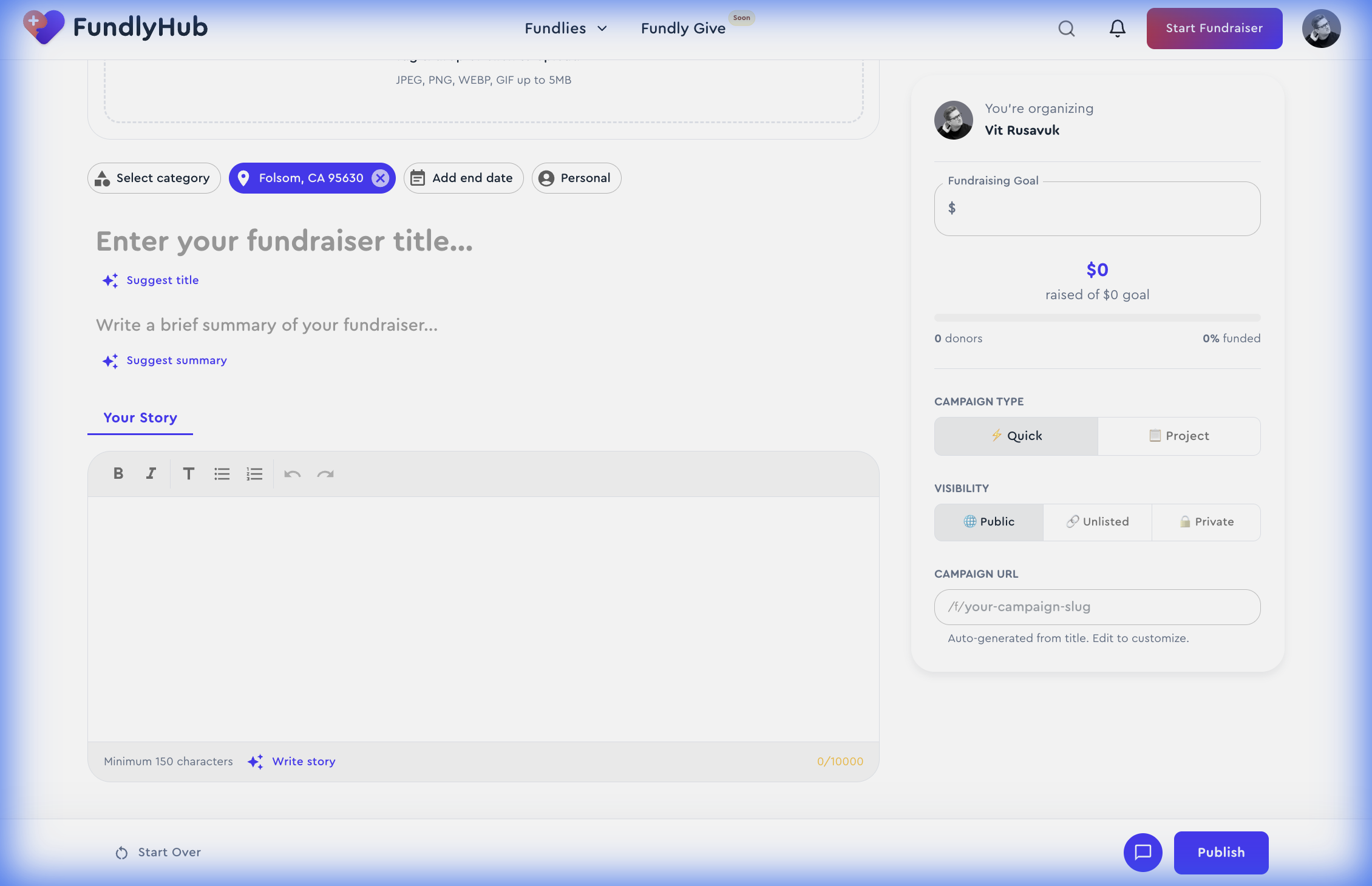
¿Necesitas empezar de nuevo? Haz clic en Start Over para limpiar el formulario — y usa Restore si cambias de opinión. Tu borrador se guarda automáticamente cada 30 segundos, así no perderás tu trabajo.
Tras publicar, tu campaña estará activa y se podrá descubrir en FundlyHub. Siempre podrás editarla más tarde desde tu perfil.
¿Listo para empezar?
Tu recaudación está a minutos de distancia. Usa nuestras herramientas de IA para crear una campaña convincente que conecte con los donantes.